Think about the last time you needed a specific document. How long did it take to find? If the answer is "more than 30 seconds," your filing system isn't working. And if your filing system is "I'll remember where I put it" or "I'll search for it" — that's not a system, that's hope.
A good digital filing system has one job: making files findable, years after they were created, by people who don't remember saving them. Whether that's you six months from now, a colleague covering your work, or your successor — the system should work without explanation. This guide covers the structure, naming, and maintenance habits that make it happen.
The Principles of a Working System
Before structure, understand the principles that make any system work:
- Shallow, not deep: Folders should nest 2-3 levels deep, not 7. Deep hierarchies are hard to navigate and hard to remember.
- Categories by function, not format: "Invoices" is better than "PDFs." "2025 Projects" is better than "Documents."
- Predictable naming: If you can't guess the file name, you can't find the file.
- One home per file: Every file has exactly one canonical location. Cross-references use shortcuts/aliases, not duplicates.
- Archive, don't delete: Completed work moves to an archive, preserving history without cluttering active folders.
Search is not a filing system
"I'll just search for it" works until it doesn't — when you can't remember the file name, when you saved it with a vague title, or when search returns 47 results. A filing system means you know where something is before you search. Search is the backup, not the primary method.
The Folder Structure
Here's a structure that works for individuals and small teams. It's based on time and function — the two axes that make files findable:
📁 Documents/
  📁 01_Active/
    📁 Projects/
    📁 Admin/
    📁 Personal/
  📁 02_Reference/
    📁 Templates/
    📁 Policies/
    📁 Resources/
  📁 03_Archive/
    📁 2024/
    📁 2025/
  📁 04_Inbox/
Why this works:
- Numbered prefixes force sort order — Active comes before Reference, which comes before Archive
- 01_Active is where current work lives — the folder you open daily
- 02_Reference holds things you need but don't actively work on — templates, policies, reference docs
- 03_Archive is the graveyard — completed projects organized by year, searchable but out of the way
- 04_Inbox is the staging area — new files land here and get sorted weekly (not daily, not never)
The Naming Convention
File names should be self-describing and sortable. Use this pattern:
YYYY-MM-DD_DescriptiveName_Version.extension

Examples:
2026-01-15_Q4FinancialReport_v03.xlsx
2026-01-10_ClientProposal_AcmeCorp_v02.docx
2025-12-20_TeamMeetingNotes_v01.md
Key rules:
- Always lead with the date in ISO format (YYYY-MM-DD). This makes files sort chronologically in any file manager.
- Use underscores, not spaces. Spaces cause issues in URLs, command lines, and some systems. Underscores are universally safe.
- Be descriptive but concise. "Q4FinancialReport" beats "Report" or "Q4FR2026FinalDraft_v3."
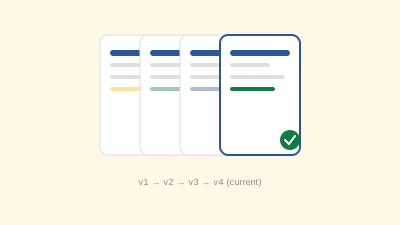
- Include version numbers for documents that go through revisions. See our version control guide for the full system.
- No special characters. Avoid / \ : * ? " < > | — they cause cross-platform issues.
The Inbox Discipline
The most important folder is the one most people don't have: an Inbox. This is where new files land — downloads, email attachments, scanned documents — before they're sorted. The rule is simple:
Files enter the Inbox. Files leave the Inbox within one week. The Inbox is never a permanent home.
Once a week (Friday afternoon works well), spend 15 minutes sorting the Inbox:
- Delete what you don't need
- Rename files that need better names
- Move active files to 01_Active
- Move reference material to 02_Reference
- Move completed items to 03_Archive
This weekly sort prevents the Inbox from becoming the dumping ground that defeats the whole system. It's the maintenance that keeps the structure working.
Cloud vs. Local: Where Files Live
The folder structure above works whether files are local, in cloud storage, or both. But where files live affects how the system works:
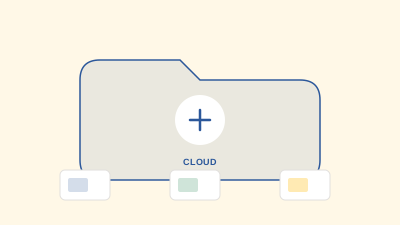
- Cloud storage (OneDrive, Google Drive, Dropbox): Best for files you share, access from multiple devices, or need backed up automatically. The structure lives in the cloud and syncs everywhere. See our cloud storage comparison for choosing a platform.
- Local storage: Best for large files, sensitive data, or files that don't need syncing. The structure works the same, but backup is your responsibility.
- Hybrid: Keep active files in the cloud for access, archive on a local drive or external storage. This balances convenience with cost.
Whatever you choose, apply the same folder structure consistently. The system works the same regardless of where the files physically live.
Handling Shared Files
When multiple people access the same files, the system needs additional rules:
- One shared location: Files live in a shared drive, not in individual accounts. See the single-source-of-truth principle in our version control guide.
- Clear ownership: Each folder has an owner responsible for maintenance and archiving.
- Read-only for reference: Reference folders should be read-only for most team members — only the owner modifies them.
- Naming includes context: When multiple people create files, names should indicate authorship or department:
2026-01-15_Finance_Q4Report_v03.xlsx
The Maintenance Routine
A filing system without maintenance becomes a filing mess. Here's the minimum routine:
- Weekly (15 min): Sort the Inbox. Delete, rename, file.
- Monthly (30 min): Review the Active folder. Move completed items to Archive. Check for files that are duplicated or misplaced.
- Quarterly (1 hour): Review the overall structure. Are categories still relevant? Is anything overflowing? Archive the previous quarter's completed work.
- Annually (2 hours): Review the Archive. Confirm old projects are properly organized by year. Clean up the Templates folder. Update any naming conventions that aren't working.
This is roughly 3 hours per year of maintenance — a tiny investment for a system that saves you from losing hours every month searching for files.
What About Tags and Labels?
Modern file systems and cloud platforms support tags and labels as an alternative or supplement to folders. Tags allow a file to belong to multiple categories simultaneously — a proposal could be tagged "Client," "Q1 2026," and "Contract" at the same time.
Tags are powerful but require discipline. If you tag inconsistently, tags become useless. Our recommendation: use folders for the primary structure (where a file lives) and tags for secondary attributes (status, project, client). Folders for location, tags for context.
The Payoff
A working filing system gives you something valuable: the confidence that any file you need can be found in under a minute. That confidence reduces stress, saves time, and makes collaboration easier — because "where's that file?" stops being a question that interrupts your day.
The system described here takes about an hour to set up and a few weeks of habit-building to maintain. The payoff compounds for years. Start today: create the four top-level folders, sort your Inbox, and commit to the weekly sort. The rest follows naturally.